Apply Safety Induction
Overview
This section describes how users apply Safety Induction sessions
- Internal User
- External User
Applying Safety Induction for Internal User
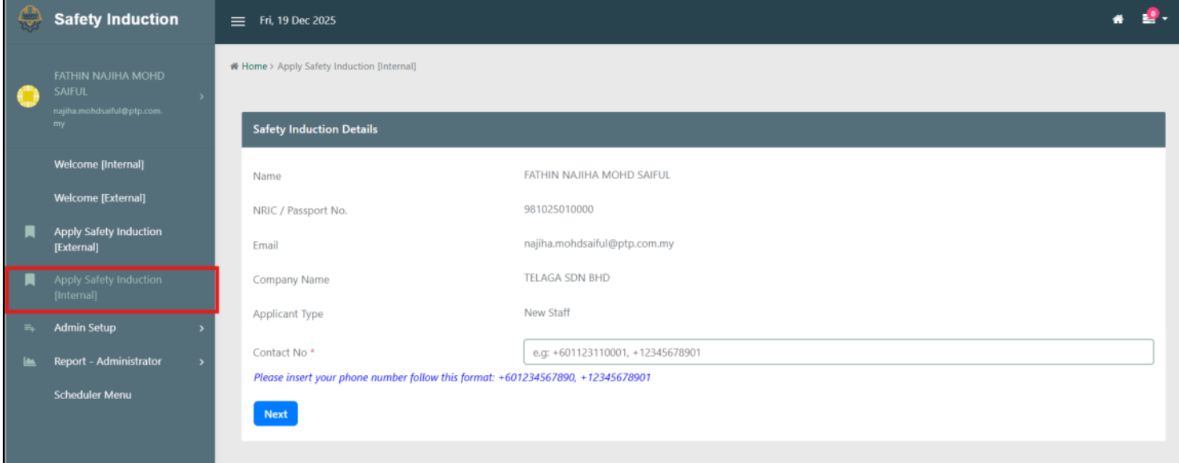
1: Start Induction
- User clicks
Start Inductionbutton or selectsApply Safety Induction [Internal]from the left menu bar.
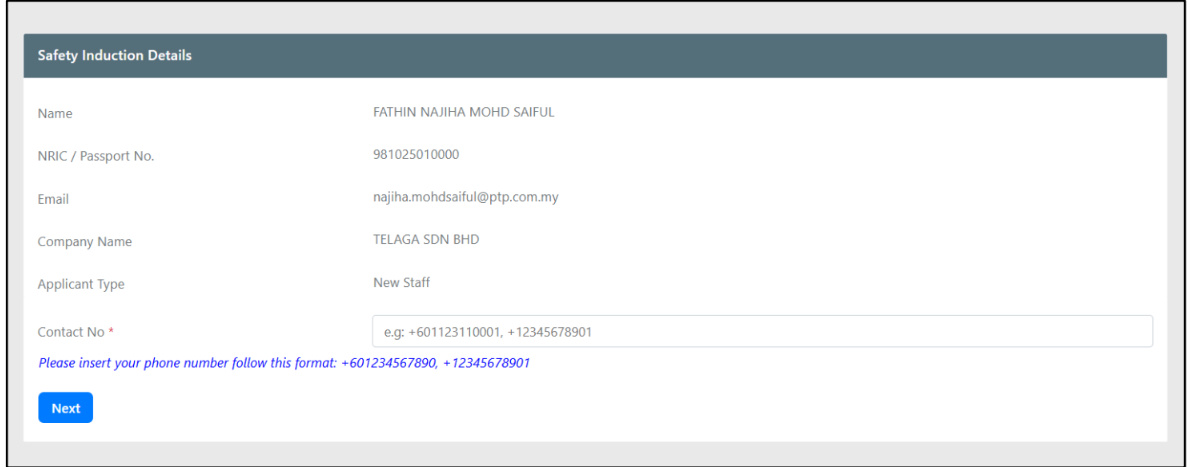
2: Fill Safety Induction Details
- Complete the Safety Induction form with required information.
3: Choose Language
- Select preferred language for the Safety Induction video.

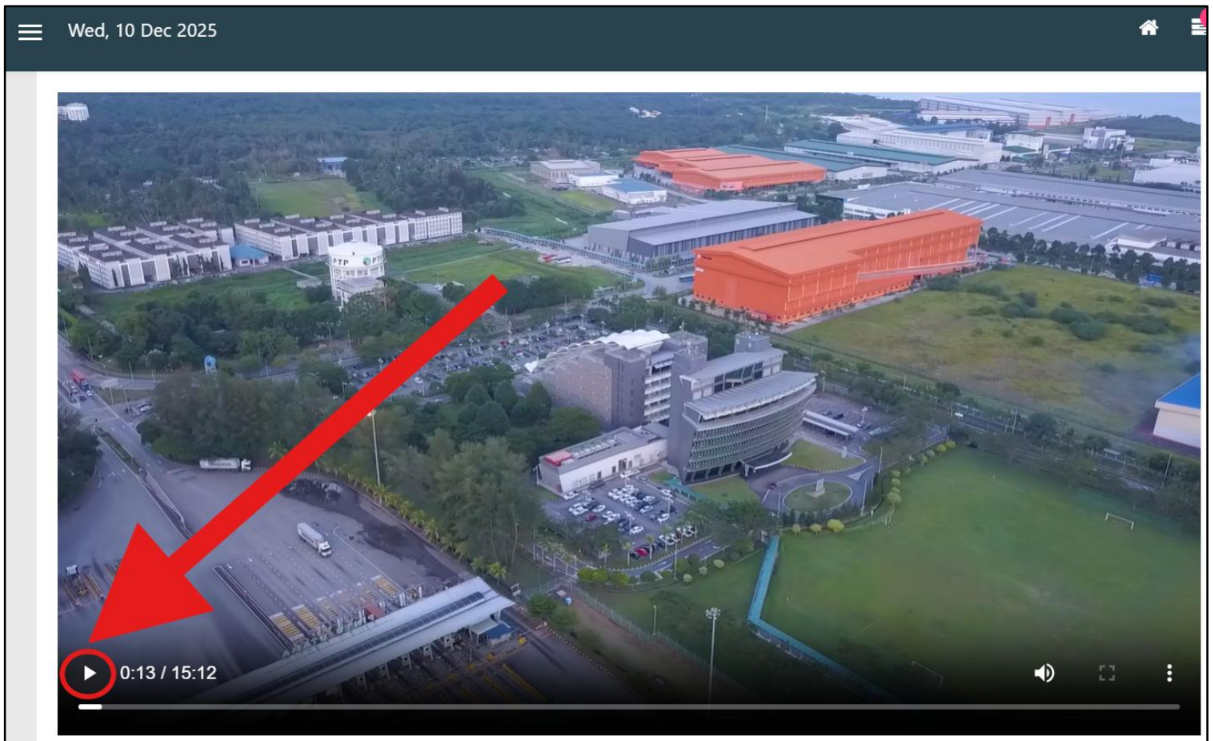
4: Play Video
- Click the
Playbutton on the video player.
5: Watch Video
- Watch the video until the end. The video cannot be fast-forwarded or downloaded.
warning
The Safety Induction Video:
- Cannot be fast-forwarded
- Cannot be downloaded
- Cannot be skipped
6: Download Induction Slip
- After the video finishes, click
Download Induction Slip.
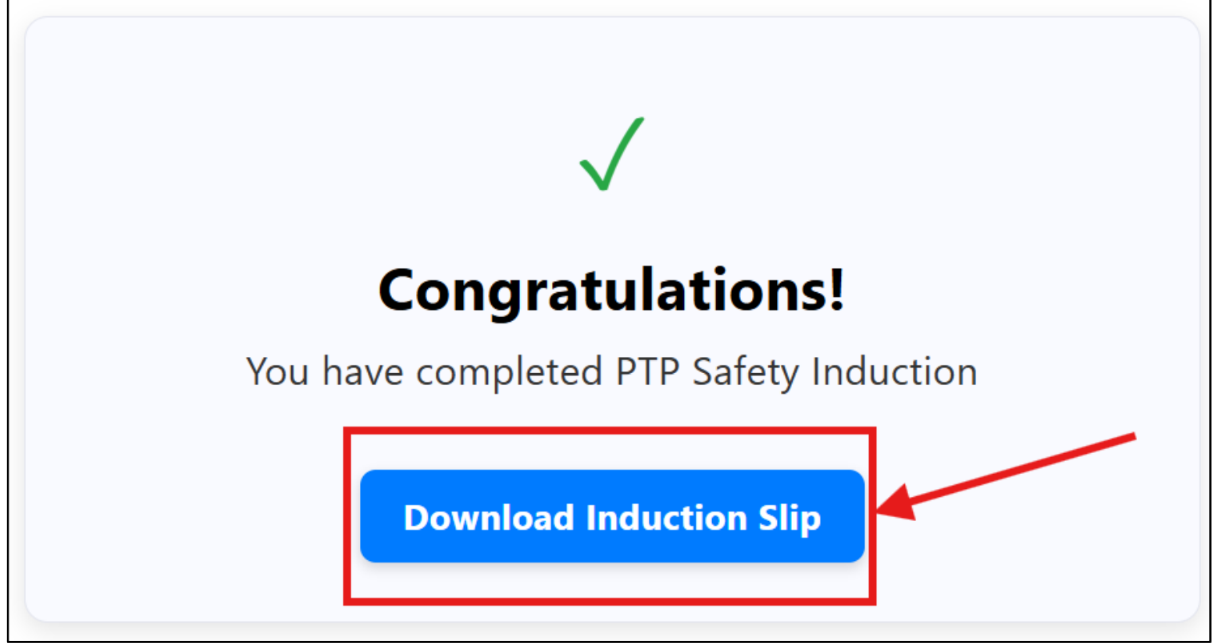
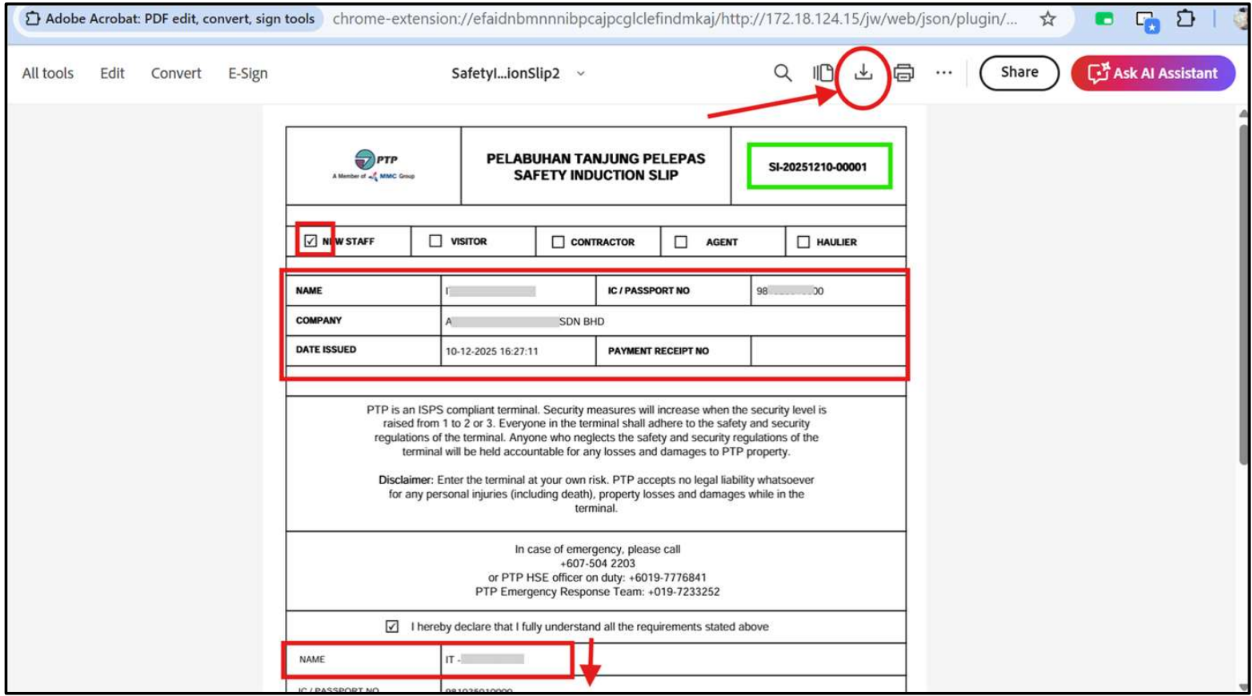
7: Safety Induction Slip Page
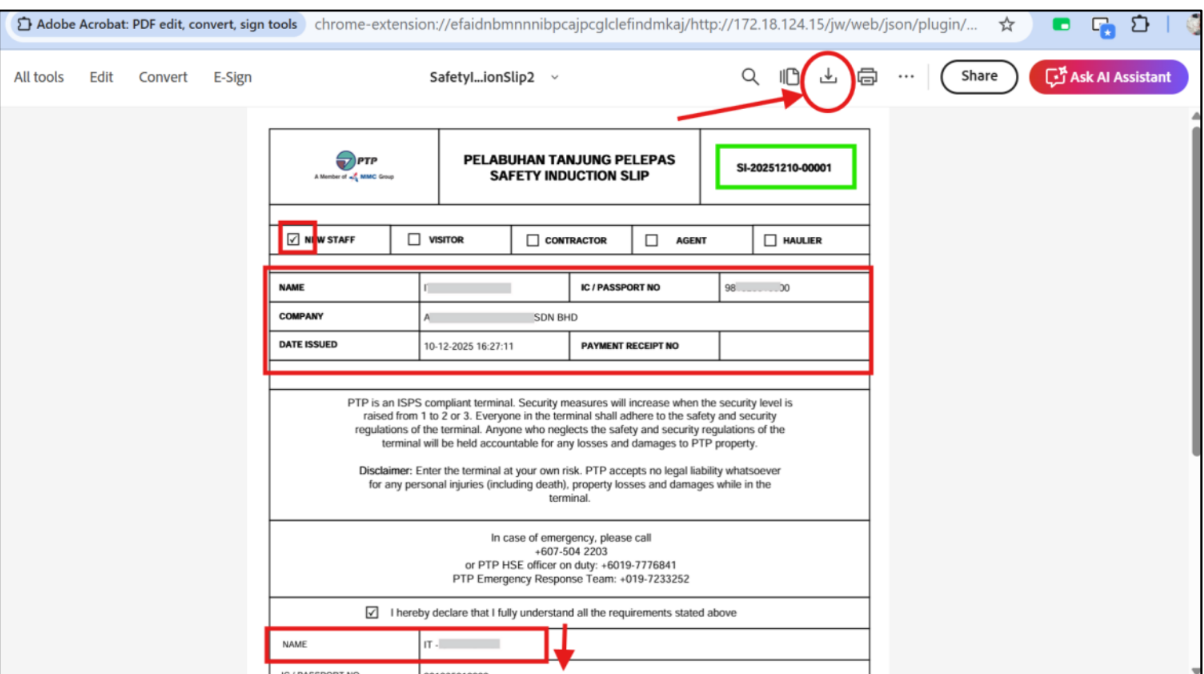
- The system opens the Safety Induction Slip page where users can download the slip. The slip displays the Slip Number (green) and user details.
note
Verify that the Safety Induction Slip contains:
- Slip Number
- Applicant Information
- Safety Induction Details
- Issue Date
The Slip Number is displayed in the highlighted green field.
You may download and save the slip for future reference.
Applying Safety Induction for External User
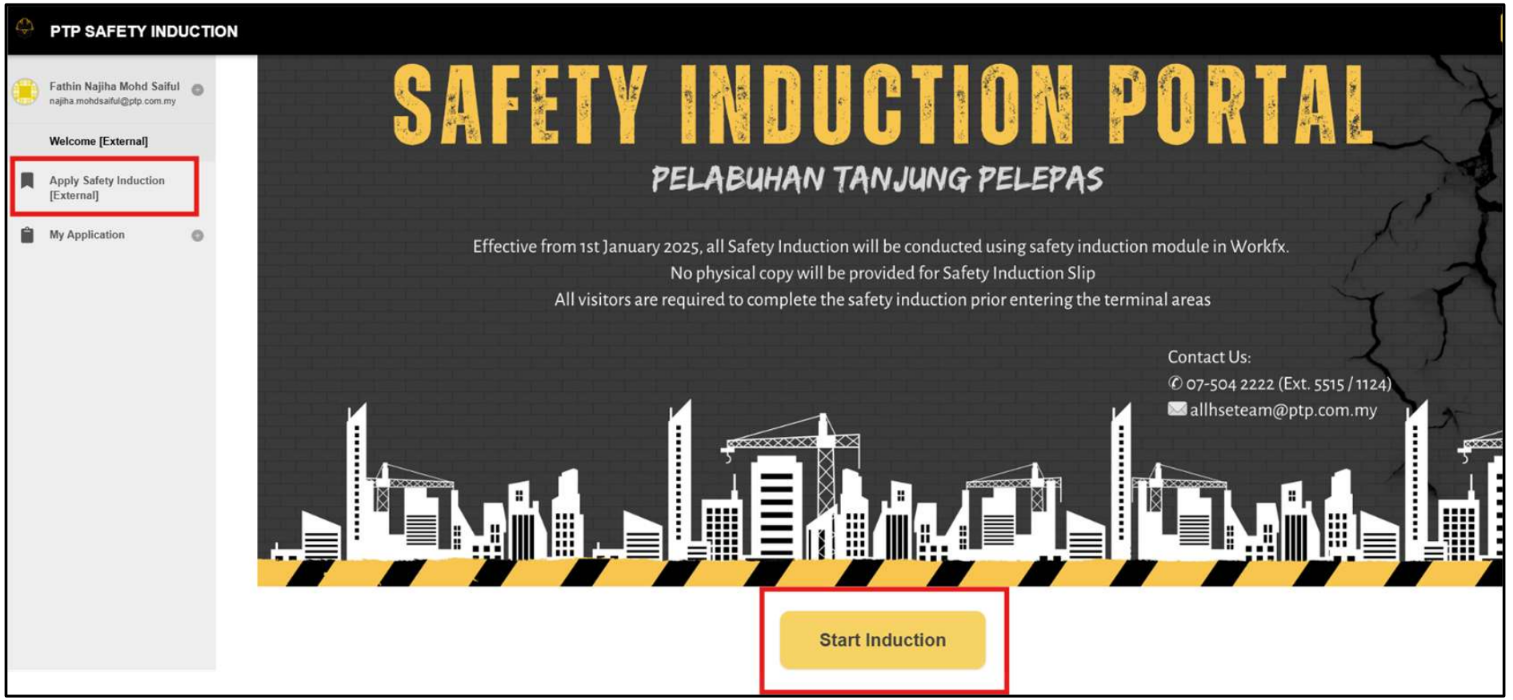
1: Start Induction
- User clicks
Start Inductionbutton or selectsApply Safety Induction [External]from the left menu bar.
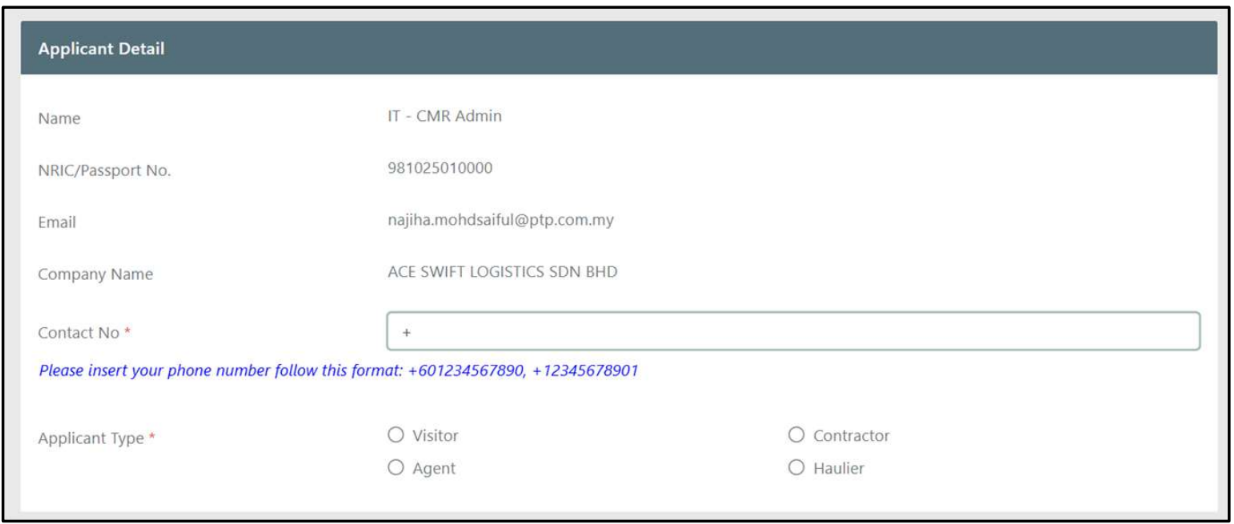
2: Fill Safety Induction Details
- Fill up the Safety Induction details in the form.
3: Choose Induction Type and Make Payment
- Choose the induction type and proceed by clicking
Make Payment.

4: Review Payment Details
- The user will proceed to the online payment page where they need to check the details before making payment.
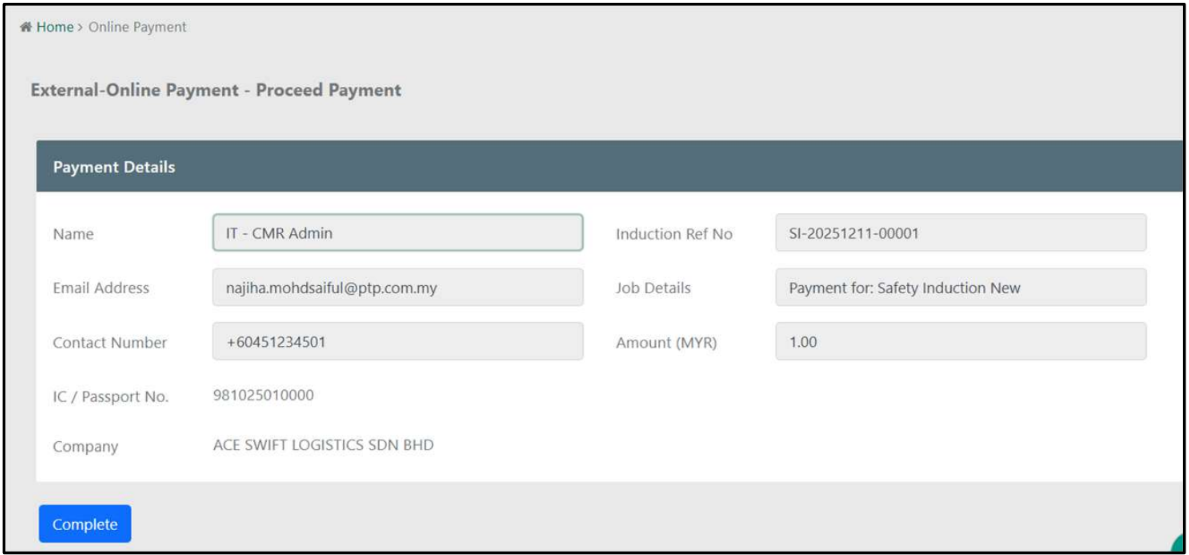
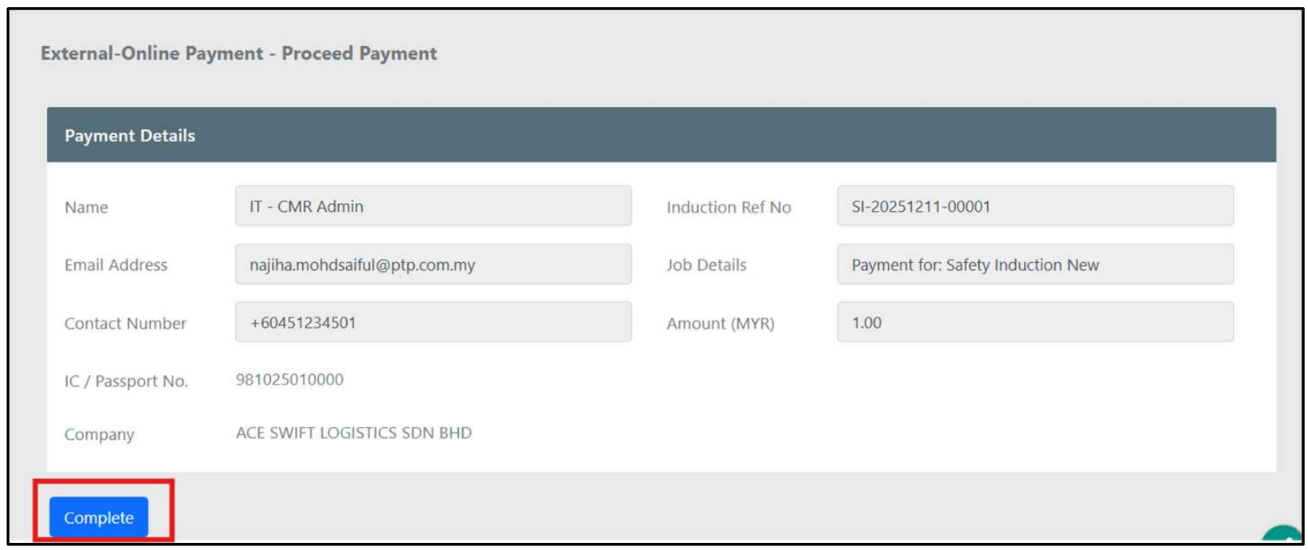
5: Confirm Payment
- Once confirmed with the details, the user needs to click
Completeto proceed with payment.
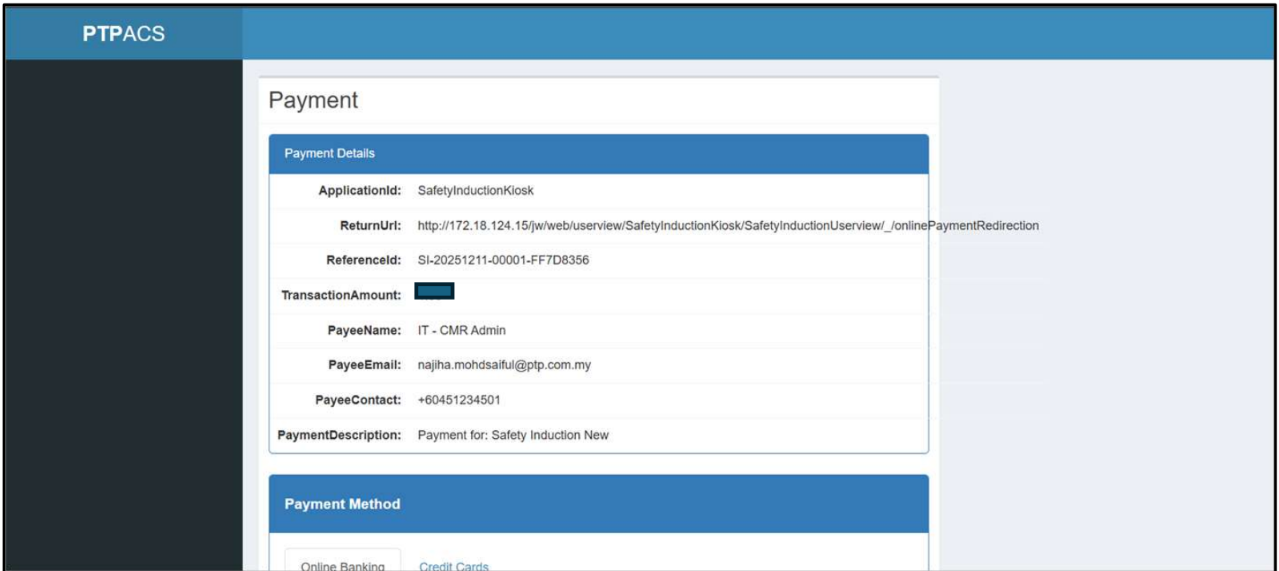
6: Payment Details Display
- The system will display the payment details.
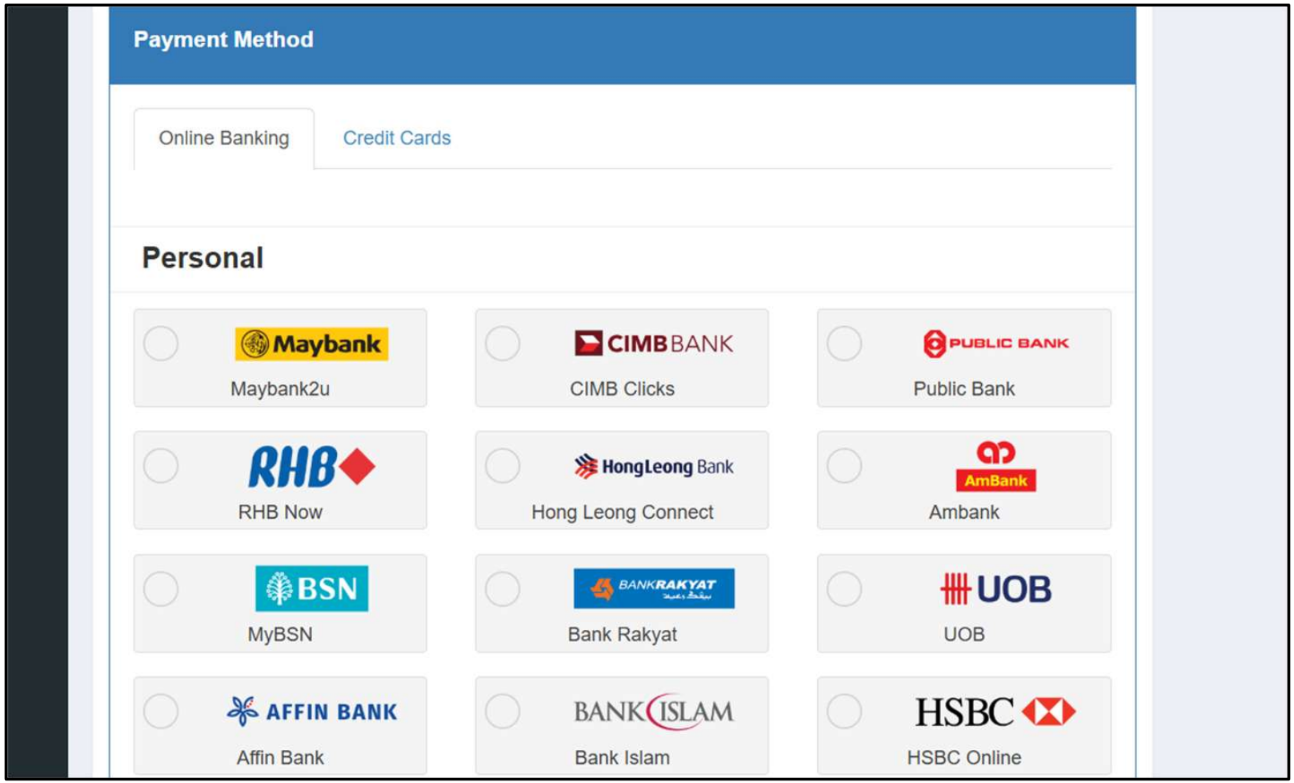
7: Choose Payment Method
- Users need to choose a payment method to be used, either Online Banking or Credit Card.
8: Accept Terms and Conditions
- Tick the box to agree with the Terms & Conditions.
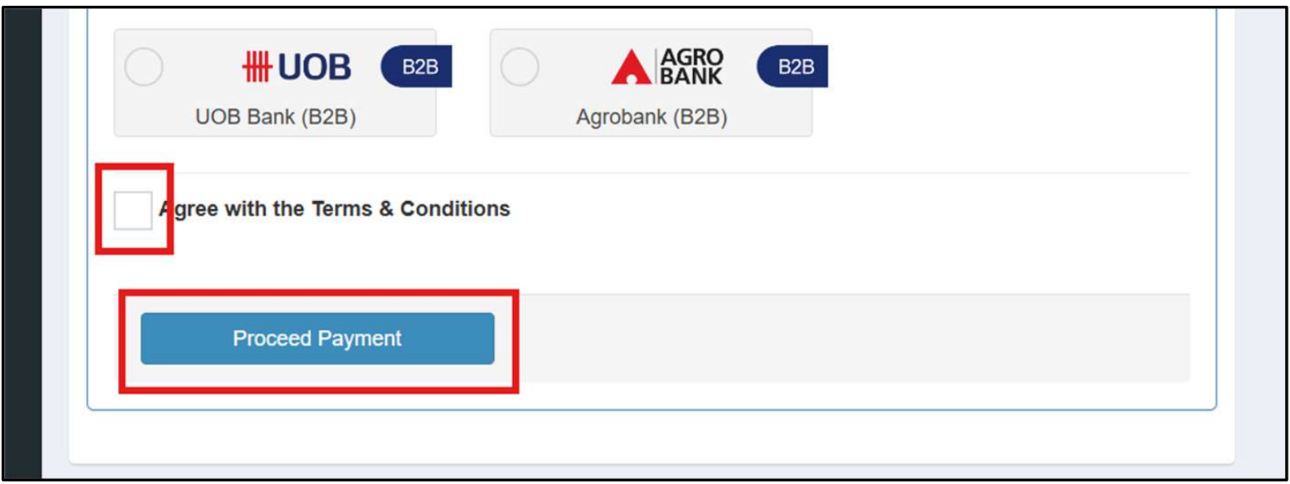
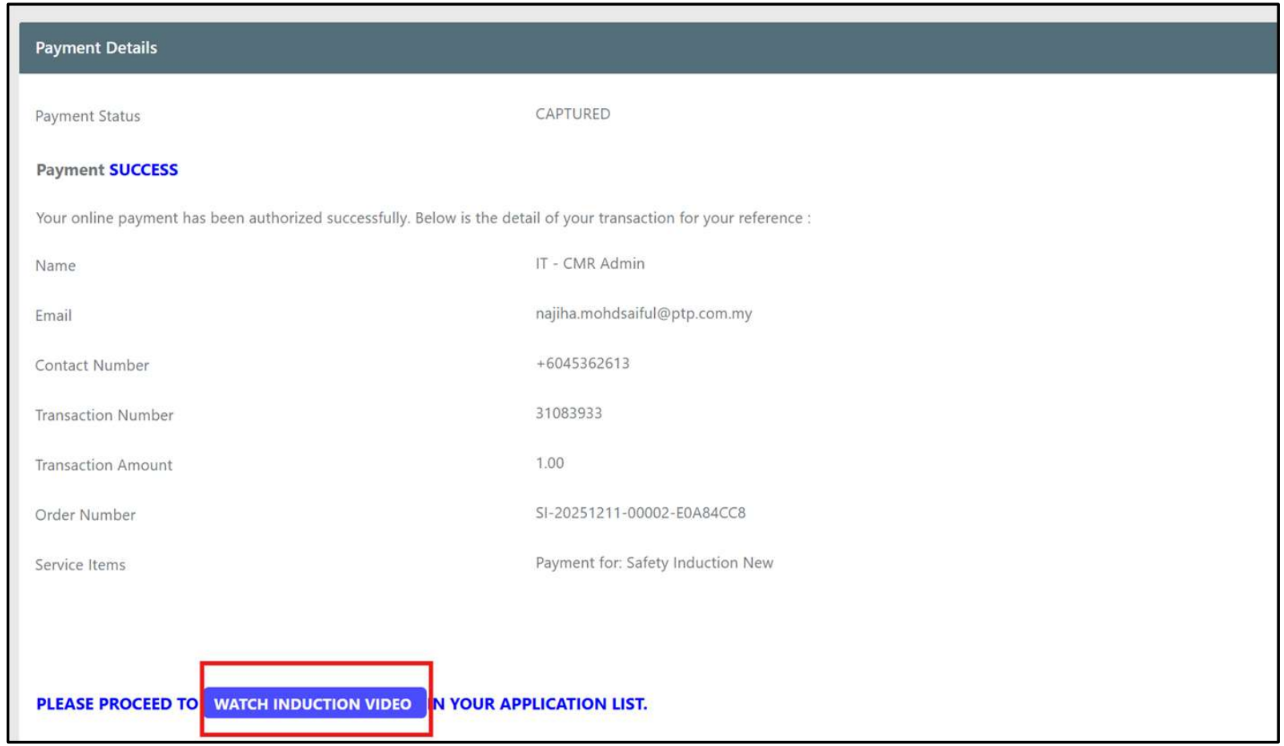
9: Payment Success
- The system will display a success page after making the online payment and the user can proceed to watch the induction video.
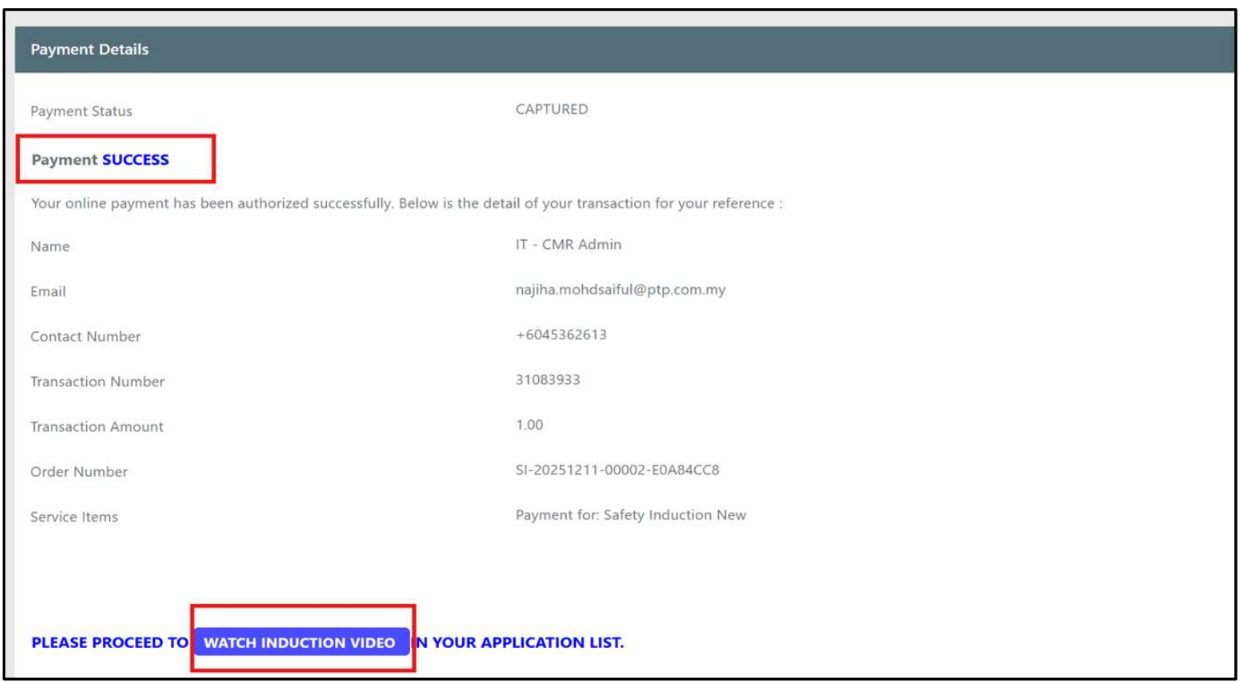
10: Payment Receipt
- The user will also receive emails from PTPACS and Razer for the payment receipt.
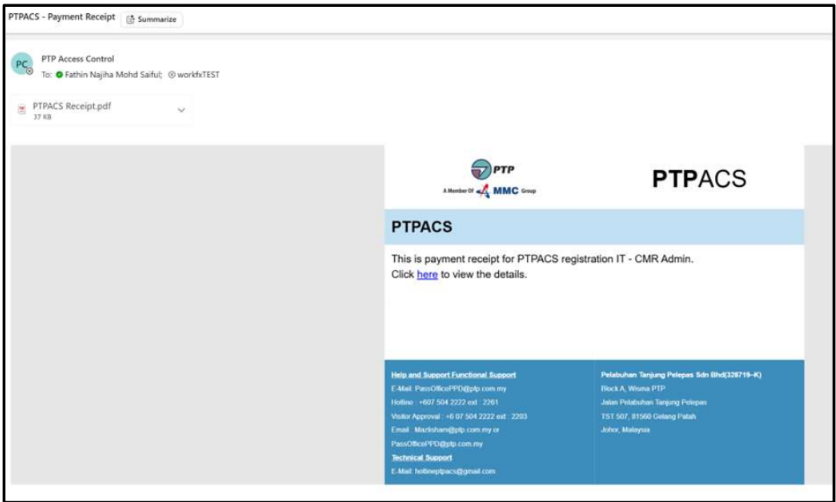
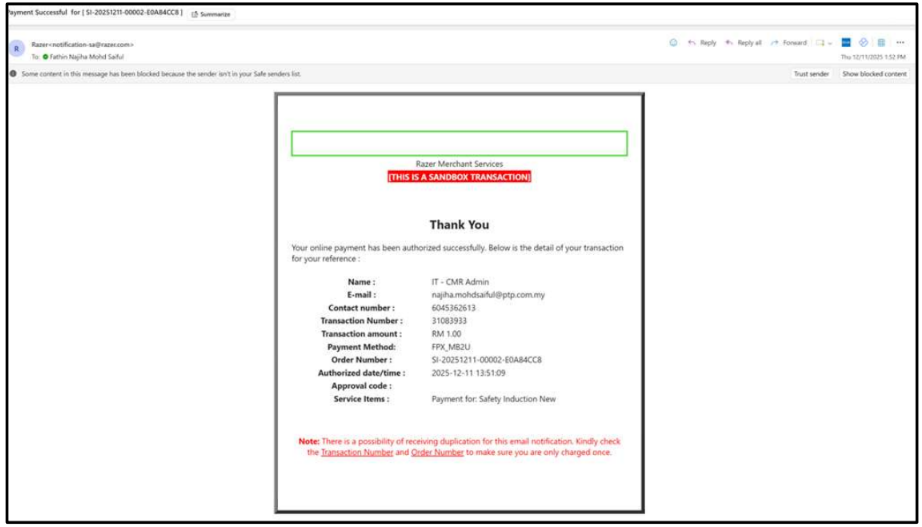
11: Open Video After Payment
- After the payment is completed, the system will display an online payment message page that redirects the user to the induction video by clicking
Watch Induction Video.
12: Choose Language
- Choose the preferred language for the Safety Induction video.

13: Play Video
- Click the
Playbutton on the video.
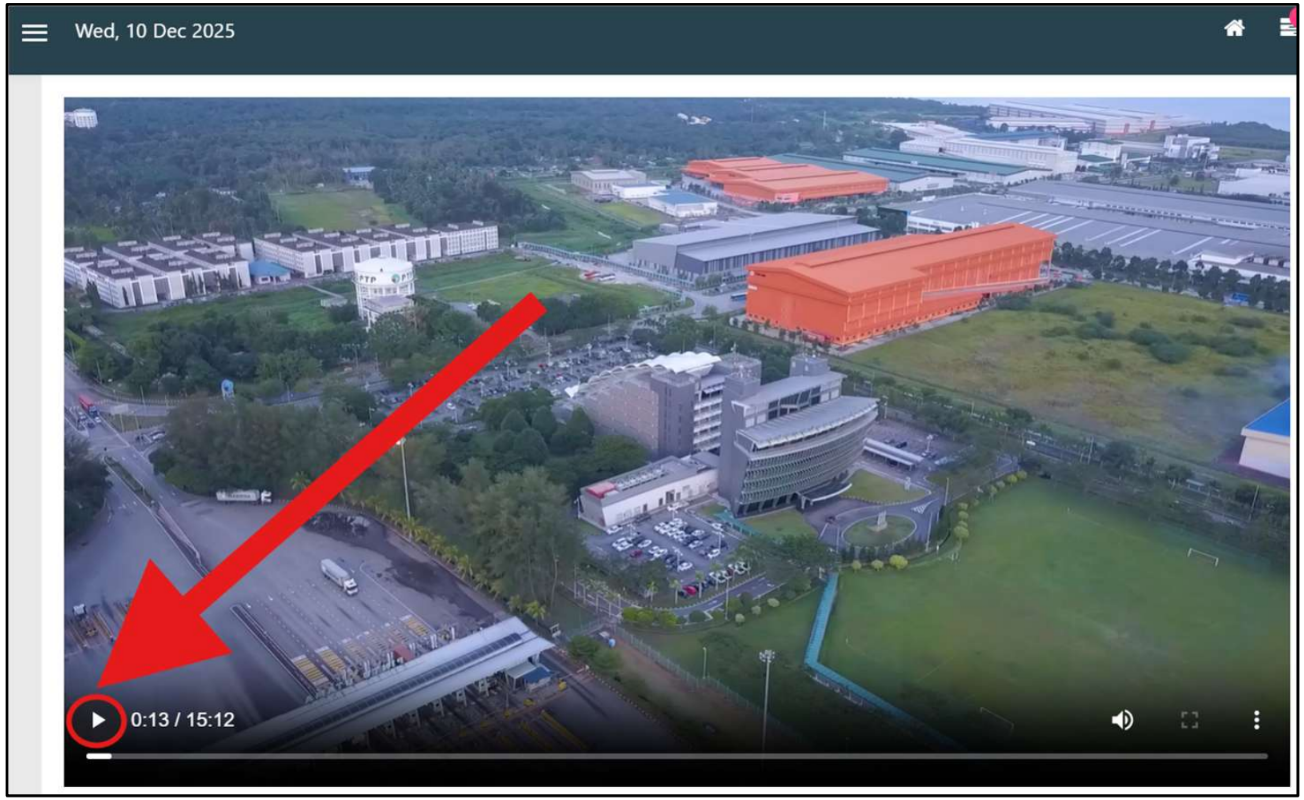
14: Watch Video
- Watch the video until the end. The video cannot be fast-forwarded or downloaded.
warning
The Safety Induction Video:
- Cannot be fast-forwarded
- Cannot be downloaded
- Cannot be skipped
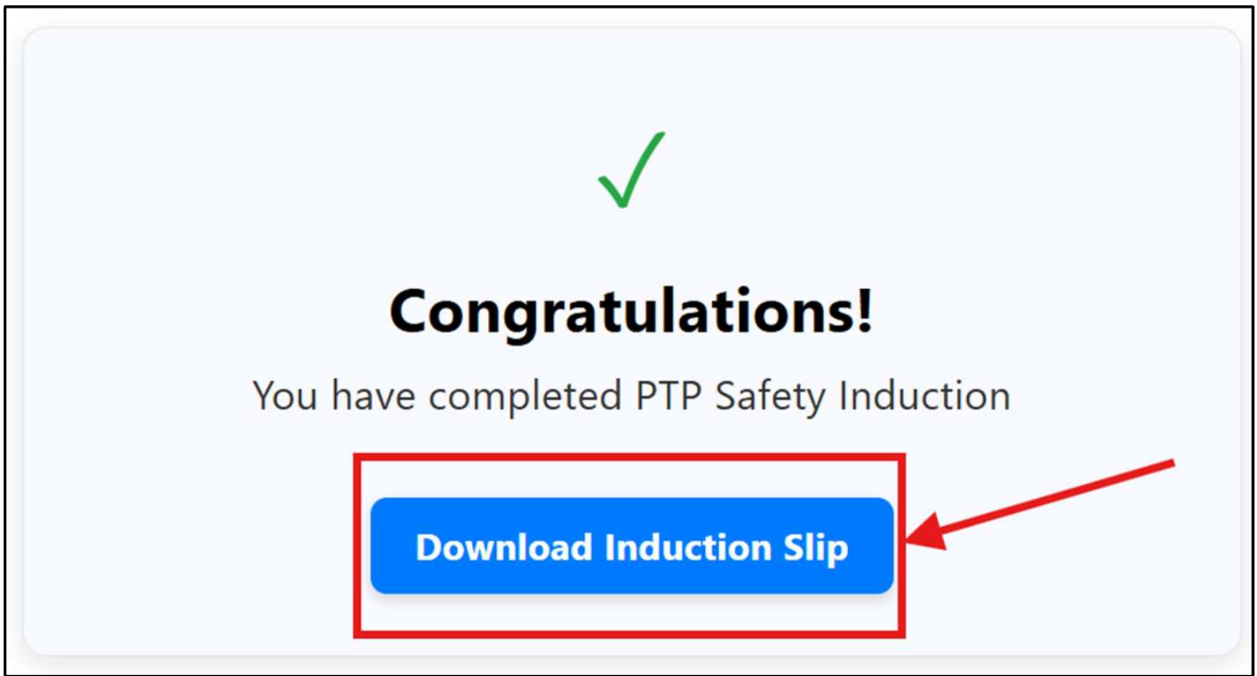
15: Download Induction Slip
- After the video finishes playing, the screen below will be shown. Click the
Download Induction Slipbutton.
16: View Safety Induction Slip
- The system will direct the user to the Safety Induction Slip page. The user may download it from there. The induction slip should show the Slip Number (green) and all other user details.
note
Verify that the Safety Induction Slip contains:
- Slip Number
- Applicant Information
- Safety Induction Details
- Issue Date
The Slip Number is displayed in the highlighted green field.
You may download and save the slip for future reference.